

Before you start
This tutorial picks up where Chat and inspect tool calls ends, with all three panes answeringDraw a rectangle with the text Hello inside it. If you came here directly, connect the Excalidraw demo server as in Start testing, open Playground, and send that prompt.
Compare the renders
Look at what the widget rendered in each pane and note any difference. In the example run¹, Claude and Cursor drew a filled light-blue rectangle, and ChatGPT drew an outline with small text. Your run may look the same in every pane, or differ in other ways.
Compare the tool arguments
If a pane shows only text, select Trace in that pane and check which tool the model called, if any. If the pane shows No servers, connect Excalidraw (App). If it still shows No servers, open that pane’s Pane settings, select Excalidraw (App) under Servers for this chat, and send the prompt again. If the server is connected but the model chose a different tool, note that difference; it is already a result. Compare widget inputs only in panes that called
create_view.In each pane you want to compare, select Edit input & output and read INPUT. Each pane’s model writes its own create_view call, so the inputs don’t have to match.In the example¹, the models in the Claude and Cursor panes sent a rectangle with "backgroundColor":"#a5d8ff" on a 400×300 canvas. The model in the ChatGPT pane sent a rectangle with no background color on an 800×600 canvas. That explains the outline and the smaller text: the widget drew what it was given.Select Done editing in each pane when you finish.Check for blocked requests
Look at the Sandbox icon in each widget toolbar. A number on it counts the operations that pane’s emulated sandbox blocked.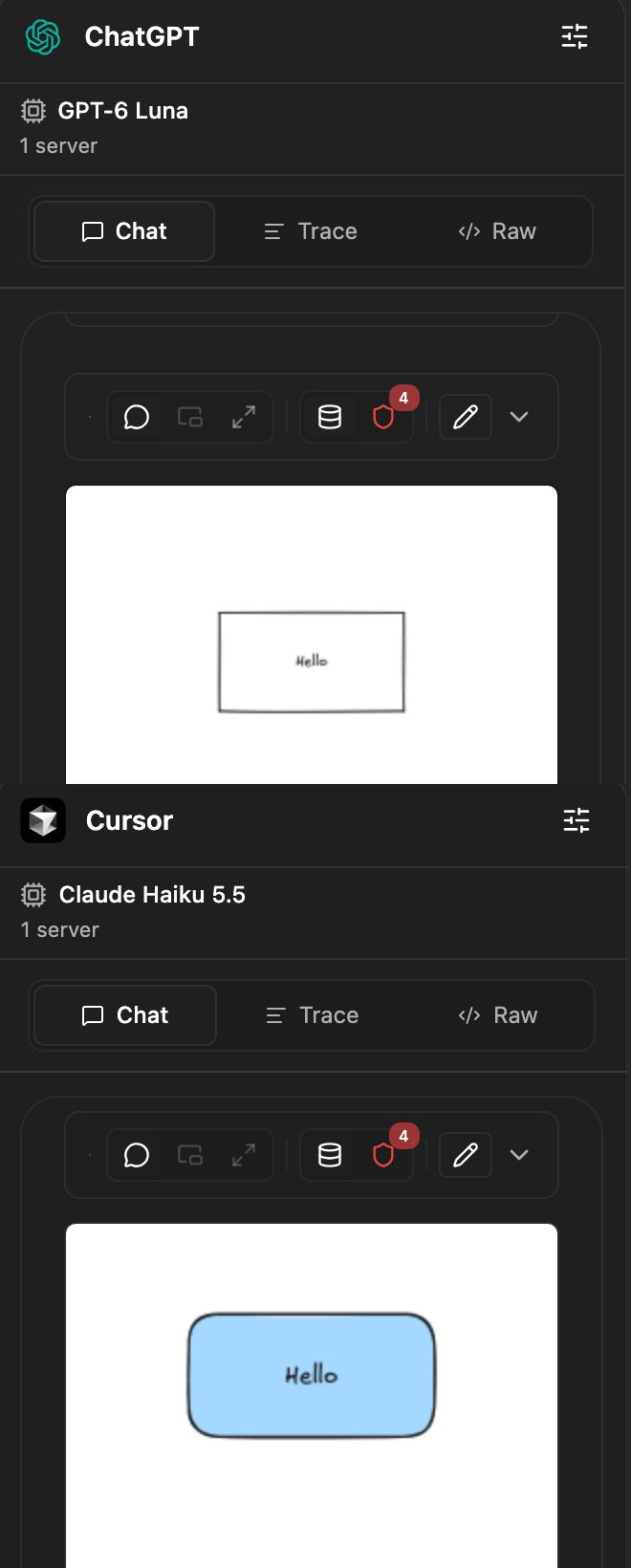
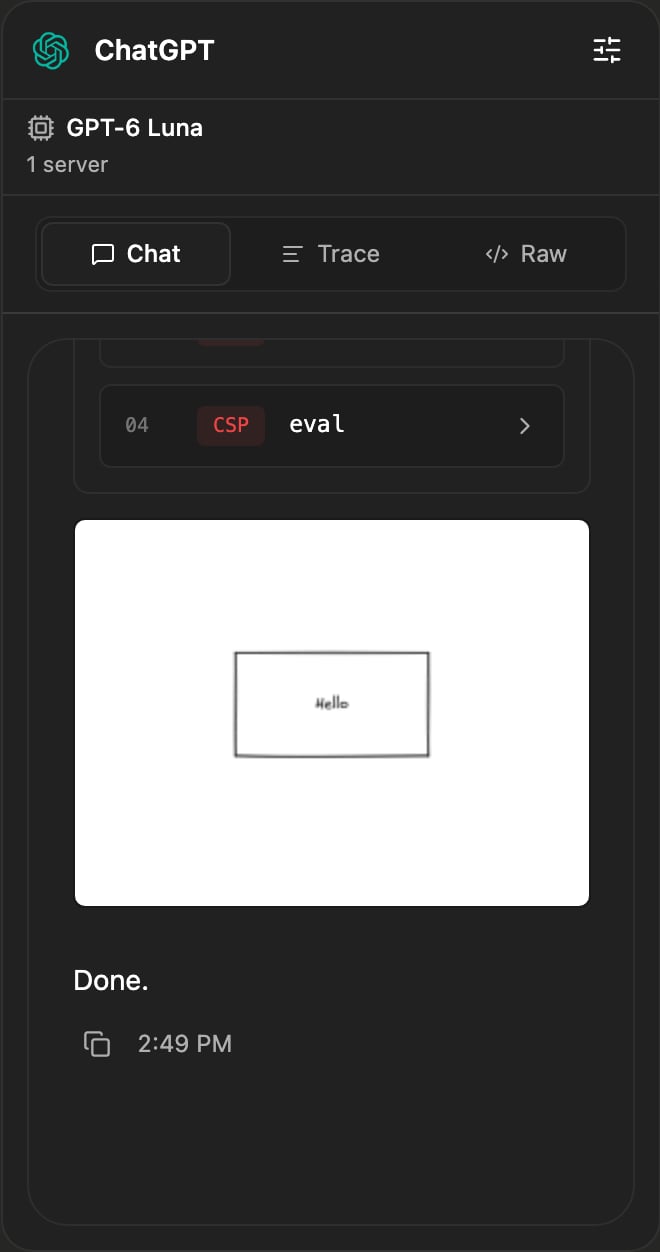
- If there is a number: select Sandbox in that pane. Each blocked request shows its type, what was blocked, and why. In the example¹, the ChatGPT and Cursor panes each listed CSP ·
eval, blocked because the Content Security Policy directivescript-srcdoes not allow it. - If there is no number: no blocked request was reported for that widget in this run. That covers only what this run did; other prompts or interactions can still hit a block.
Decide what to do
Match what you saw to one of these cases:
- Different arguments. First check whether the difference breaks the request. The prompt didn’t ask for a fill color, so a plain outline still meets it. If an argument does contradict the request, review your tool’s description and input schema.
- Same relevant arguments, different rendering. Compare what each client supports and how your widget handles it. If the inputs differ, these runs alone can’t tell you whether the client caused the rendering difference. Before you report it as a client bug, confirm it in the client’s own app: a pane is an emulation.
- A blocked request. Read the blocked operation and the policy that blocked it, then find the code in your widget that makes the request. Decide whether the widget needs it before you change anything.
- No unexpected difference and no block. You are done.
Change which clients you compare
At the bottom of the chat box, select the client chips (Claude, ChatGPT, Cursor) to open the client list.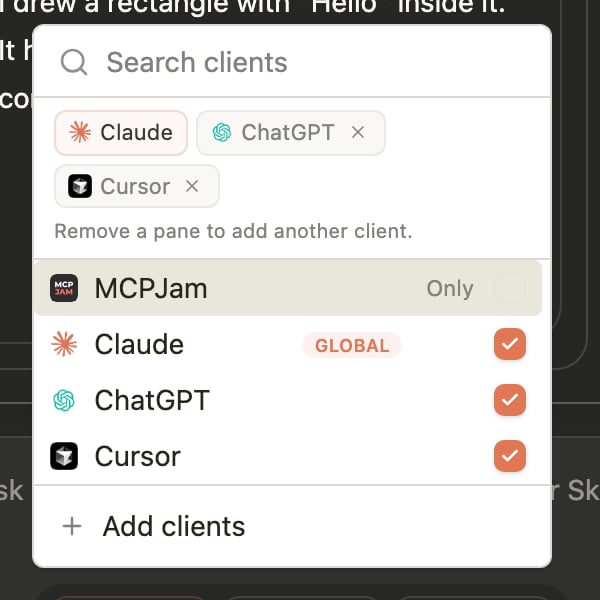
Your own server
To test your own server, connect it instead of the demo, as described in Start testing, and repeat these steps. ¹ Example observed on November 16, 2026 in the emulated panes on app.mcpjam.com, signed out, with the Excalidraw demo server. Models write different arguments on each run. Not tested in the native Claude, ChatGPT or Cursor apps.Related
- Playground reference: panes, the Sandbox panel, and the JSON-RPC log.
- Test a widget: the widget toolbar and the tool input and result.