

- Connect your server and open Inspect → Tools. Select the server you want to test.
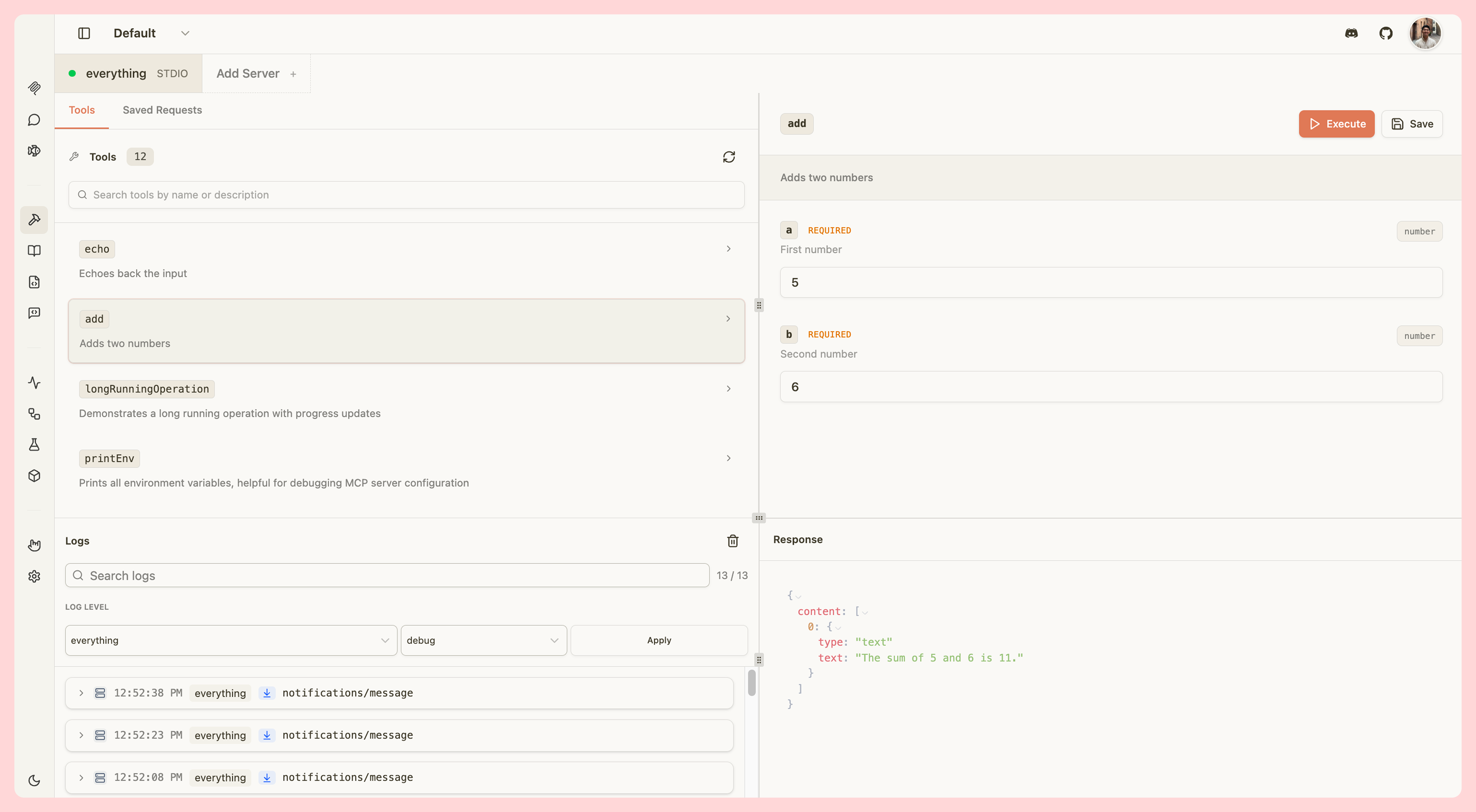
- Select a tool to see its description and input parameters.
- Fill in the parameters and run the tool. Inspect its returned content, including any widget response. If the tool declares an output schema, check whether its structured output matches.
- Open the traffic log to inspect the underlying
tools/listortools/callexchange.
Elicitation requests
When a tool triggers an MCP elicitation request, a dialog appears asking you to provide additional input. The dialog renders a form built from the server’s schema and supports the full MCP elicitation subset:- Field labels and defaults: Fields show the schema
titlewhen provided (the raw property key stays visible alongside it). Schemadefaultvalues are pre-filled automatically. - Field types: Strings, numbers, integers, booleans (checkbox), single-select dropdowns, and multi-select checkbox lists are all rendered natively. Fields with
format: email,uri,date, ordate-timeuse the matching browser input type. - Inline validation: Clicking Accept validates all fields before submitting. Required fields, numeric
minimum/maximum, stringminLength/maxLength,pattern, and format constraints are all checked. Errors appear under the relevant field and block submission until resolved. - Server identity: The dialog header identifies which server is requesting information. When the server supplies both a name and an ID, both are shown. The ID is the trusted anchor and is always visible.
- Unsupported shapes: Nested objects and other schema shapes outside the MCP elicitation spec fall back to a plain JSON textarea so you can still answer by hand.
Multi-round input (MCP 2026-07-28 input_required)
If a tool call returns input_required, answer the elicitation form to continue the call. Inspector resends the request with your answers. See Multi-round-trip requests in MCP 2026-07-28.
- For
input_required, the dialog is titled Operation Needs Input. For a legacyelicitation/createrequest, the title is Elicitation Request. - Multiple keys per round: if the server embeds more than one input request in a single round, the dialog walks through them one at a time and submits all answers together.
- Decline and Cancel: send the corresponding action back to the server; the server decides whether to abort or continue.
elicitation capability when it connects to the server.
OAuth scope step-up on tool calls
When a tool call returns a403 insufficient_scope error, the Tools tab automatically triggers a re-authorization flow. Inspector unions the scopes from your original OAuth grant with the scopes the server challenged, then redirects you to the authorization server to approve the expanded set.
A challenge that names no scope at all (a bare Bearer error="insufficient_scope") also triggers it. Inspector then requests the scopes from your original grant plus the scopes_supported your server’s protected resource metadata advertises (or, failing that, the authorization server’s).
When you come back from the consent screen, the call runs again on its own, whether or not the tool is marked readOnlyHint: true. You already asked for it, and the tool-approval policy in Clients still applies. Only the sign-in that started from the call can re-run it.
The step-up is bounded per browser session: if re-authorization does not resolve the scope error after the allowed number of attempts, Inspector surfaces the error instead of redirecting again. The counter resets when a tool call succeeds, so a future legitimate scope challenge starts fresh. Opening a new browser session also resets the counter.
In a hosted project, a step-up reauthorizes your own connection in place. If the call used a connection someone else shared with the project, you sign in with your own account instead, and the earlier call is not re-run: run it again yourself.
Sign-in requested by a tool call
Some servers let you connect and call public tools without signing in, and ask for sign-in only when a protected tool runs. They signal it with an HTTP401 and a WWW-Authenticate header, or, ChatGPT style, with an isError result carrying _meta["mcp/www_authenticate"].
What the Tools tab does depends on the client you are emulating:
- Prompt to sign in: a Connect card replaces the error. Nothing happens until you click Connect. After you sign in, the call runs again on its own, for read and write tools alike, under the tool-approval policy in Clients.
- Notify: the call fails with a sign-in message. You can sign in from the card, then run the tool yourself.
- Pass through: the challenge shows as an ordinary error, with a note on how the emulated host handles it.