What you need
- A ChatGPT account that can install plugins.
- An MCPJam account with at least one project.
- Pop-ups allowed for
chatgpt.com. The MCPJam sign-in opens in a new window.
1
Install the plugin
Open the MCPJam plugin page in ChatGPT and select Install plugin.You can also get there from ChatGPT: select Plugins in the sidebar, type 
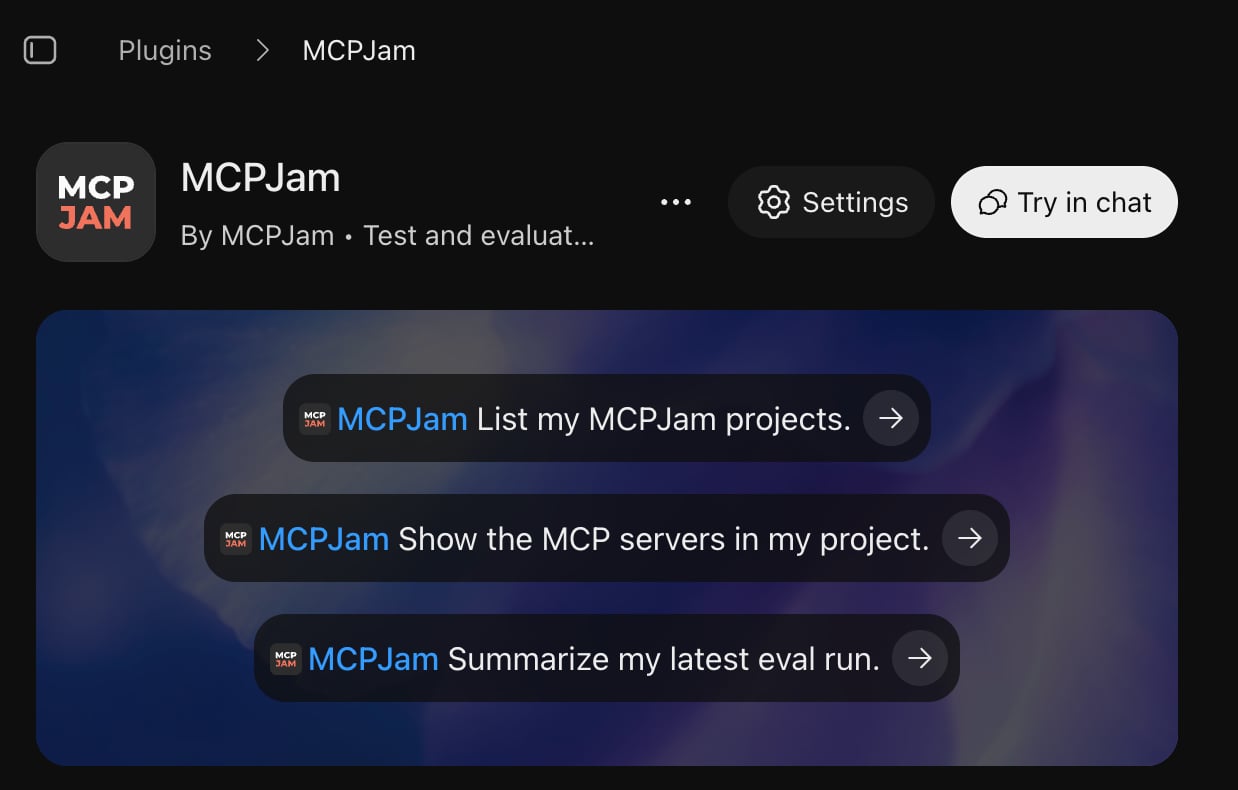
MCPJam in Search plugins, select MCPJam, then select Install plugin.2
Connect your MCPJam account
The plugin signs in with OAuth. ChatGPT sends you to MCPJam, you sign in and approve access, and you return to ChatGPT. ChatGPT never sees your MCPJam password.To check the connection, select Settings on the plugin page. The account is connected when its email appears under Connected accounts, marked Primary. If it’s the right account, you’re set up.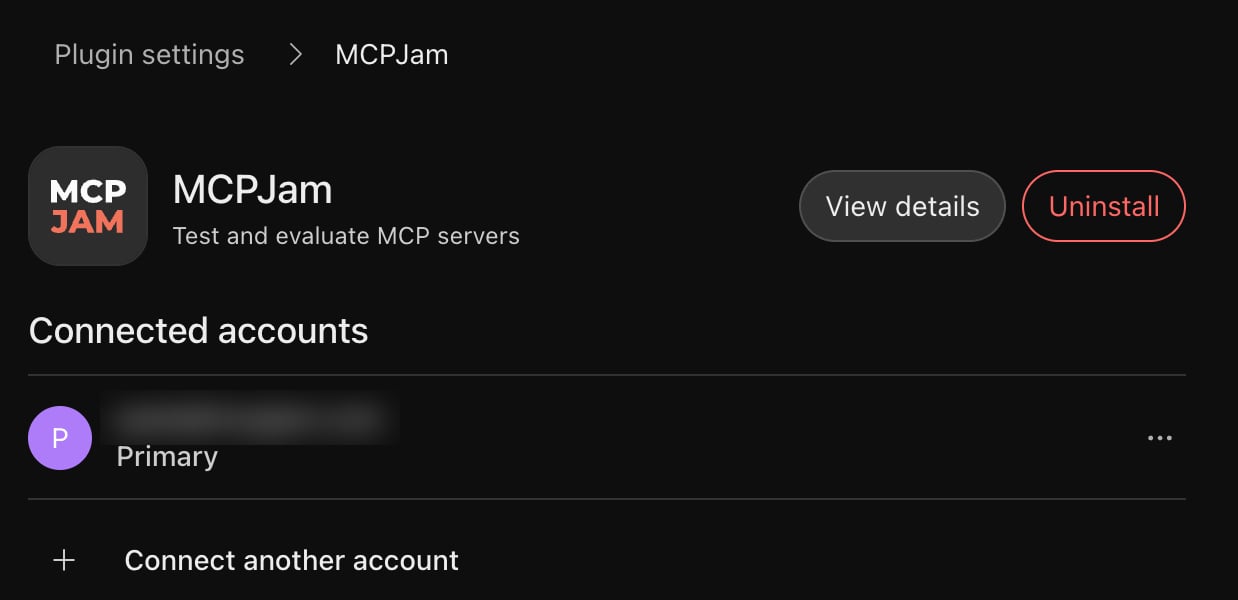
Try it: list your projects
This is optional. It confirms that ChatGPT can read your MCPJam data.-
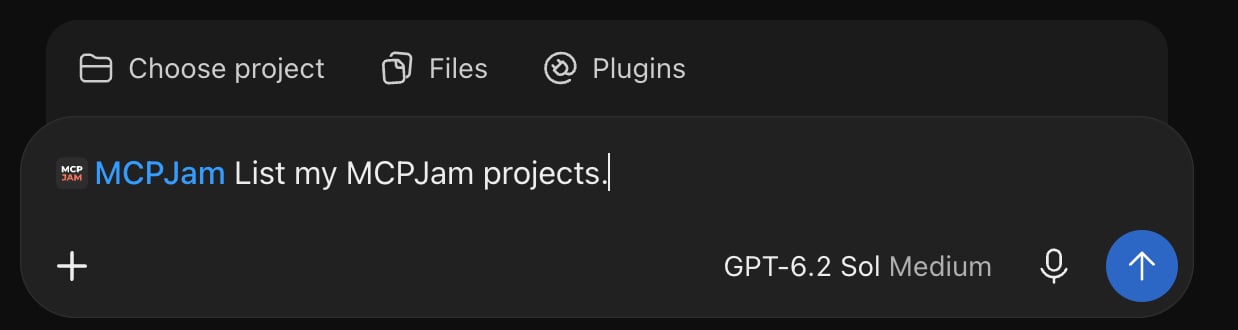
On the plugin page, select the example prompt List my MCPJam projects. A new chat opens with the MCPJam chip already in the message box. Send the message.
-
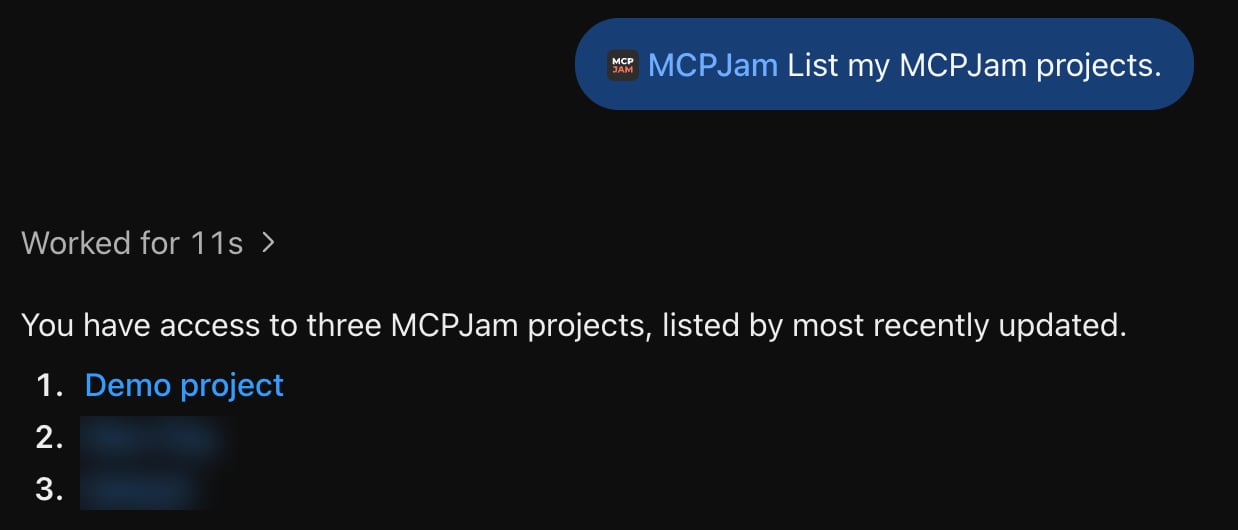
Compare the projects in the answer with the projects you see in MCPJam. If they match, the connection works.
To see which action ran, expand Worked for… above the answer. It shows Listing Accessible MCPJam Projects.
Ask about one of your projects
SendShow the MCP servers in [project name], replacing [project name] with a name from the list you just got.
If you already have an eval run, send Summarize my latest eval run to get its verdict and the cases that failed.
Some requests change project data or use your organization’s MCPJam credits or provider keys. Before the first eval run in a chat, ChatGPT asks you to confirm which suite runs and how many cases it has. A run can’t be undone once it starts.
What the plugin includes
The plugin bundles one app, which connects ChatGPT to your MCPJam account, and six skills that guide ChatGPT through MCPJam tasks.mcpjam-eval-import, create-mcp-eval and explore-to-sdk-evals work with the SDK and CLI, so they need a local development environment. Use them from Codex or a local agent.
Manage or remove the plugin
- Turn off a skill: in plugin Settings, switch off its toggle.
- Remove the plugin: in plugin Settings, select Uninstall, then Uninstall again to confirm. You can’t use the plugin until you install it again.
- Check the version: the About section shows the plugin version, the authorization method (OAuth) and the review status.