

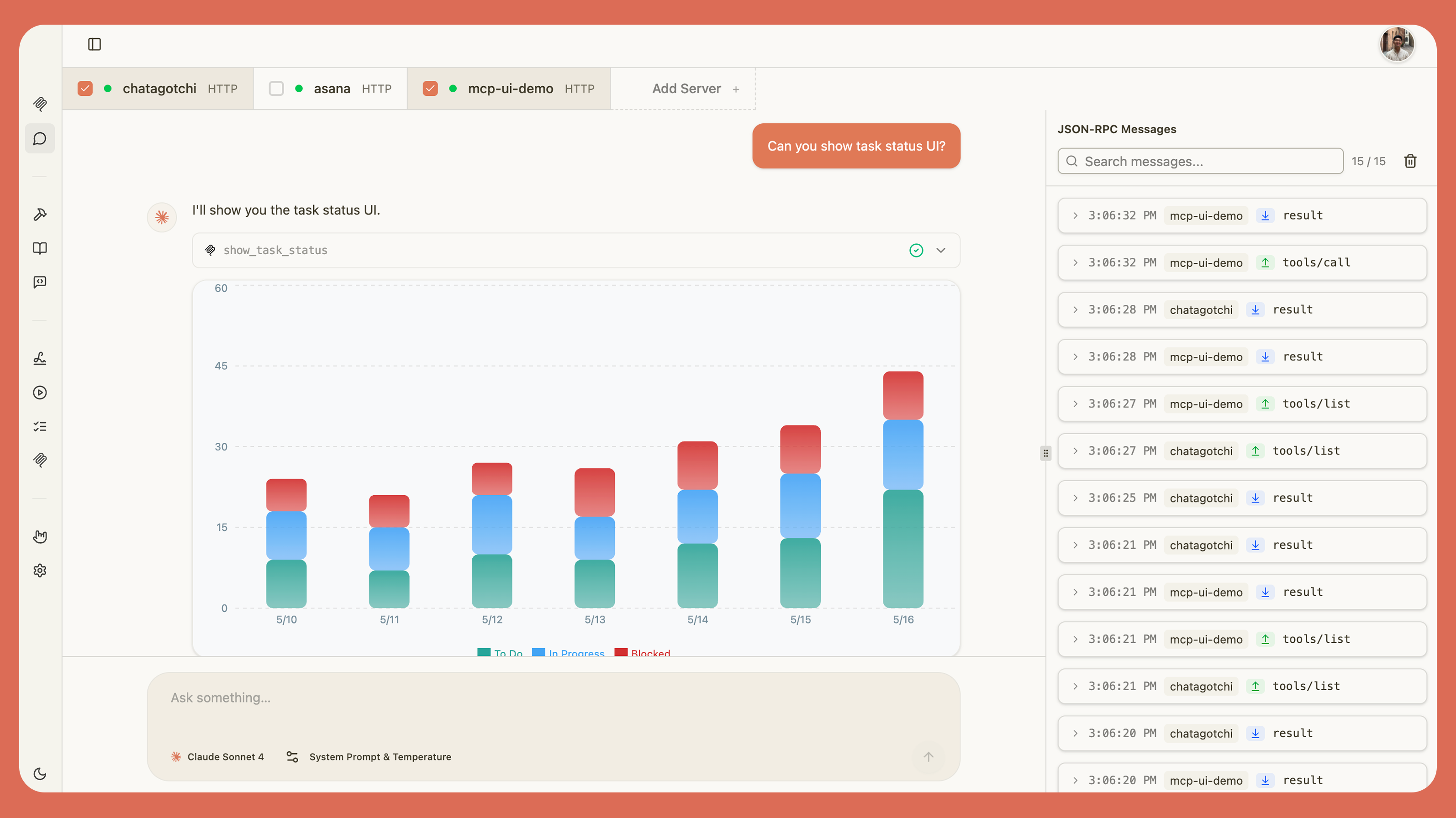
Key Features
- Multi-LLM Support - Test against OpenAI, Anthropic Claude, Google Gemini, Deepseek, Mistral, Ollama, OpenRouter, and LiteLLM
- Free Frontier Models - Access GPT-5, Claude Sonnet, and Gemini 2.5 models for free
- Widget Emulator - Full support for ChatGPT apps and MCP apps with inline rendering
- Real-time Debugging - Split-panel view with chat on the left and JSON-RPC logs on the right
- Prompt Library - Use MCP prompts directly in chat by typing
/ - Elicitation Support - Interactive prompts and forms from your MCP server
- Customizable Agent - Configure system prompts and temperature settings
Setup
To use the playground, configure at least one LLM provider:- Navigate to Settings - Click the Settings tab in MCPJam Inspector
- Choose a Provider - Select from OpenAI, Anthropic, Gemini, Deepseek, Mistral, Ollama, OpenRouter, or LiteLLM
- Add API Key - Enter your API key for the selected provider
- Select Model - Go to the Playground and choose your model from the dropdown
Supported Providers
OpenAI Get an API key from OpenAI Platform. Supports GPT-4, GPT-5, and o-series models.GPT-5 models require organization verification and do not support temperature configuration.
ollama serve <model>. MCPJam automatically detects running models.
LiteLLM Proxy
Use LiteLLM Proxy to connect to 100+ LLMs through a unified OpenAI-compatible interface. Configure your proxy URL, API key, and model aliases in the Settings tab.
Playground Layout
The playground features a split-panel interface: Chat Panel (Left)- Send messages and view LLM responses
- See tool calls and results inline
- View rendered widgets from ChatGPT apps and MCP apps
- Access MCP prompts by typing
/
- Real-time view of MCP protocol messages
- Inspect requests and responses between the inspector and your servers
- Debug tool invocations and error responses
System Prompt and Temperature
Customize your LLM’s behavior just like building an agent:- System Prompt - Set instructions and context for the LLM
- Temperature - Control randomness (0 = deterministic, higher = more creative)
Higher temperature settings may cause more hallucinations with MCP tool interactions. Start with default values.
MCP Prompts
Use MCP prompts directly in the playground by typing/ to trigger the prompts menu. When you select a prompt, it appears as an expandable card showing:
- Server name and description
- Required and optional arguments
- Preview of the prompt content
ChatGPT Apps and MCP Apps
The playground supports rendering custom UI components from both ChatGPT apps and MCP apps: ChatGPT Apps Tools withopenai/outputTemplate metadata render custom HTML interfaces in an isolated iframe with access to the window.openai API.
MCP Apps
Tools with ui.resourceUri metadata render custom UI components inline in the chat.
Widgets can display interactive visualizations, trigger tool calls, send follow-up messages, and open external links.
Display Modes
Widgets can request different display modes:- Inline (default) - Renders within the chat message flow
- Picture-in-Picture - Floats at the top of the screen while scrolling
- Fullscreen - Expands to fill the entire viewport
Widget Debugging
Access debugging information using icon buttons in the tool header:- Data - View tool input, output, and error details
- Widget State - Inspect current widget state and updates
- Globals - View global values (theme, display mode, locale)
Device and Locale Testing
Test widgets across different environments:- Device Selector - Switch between mobile, tablet, and desktop viewports
- Locale Selector - Test internationalization with different locales
- Theme Toggle - Switch between light and dark modes
window.openai API, allowing them to adapt their UI.