

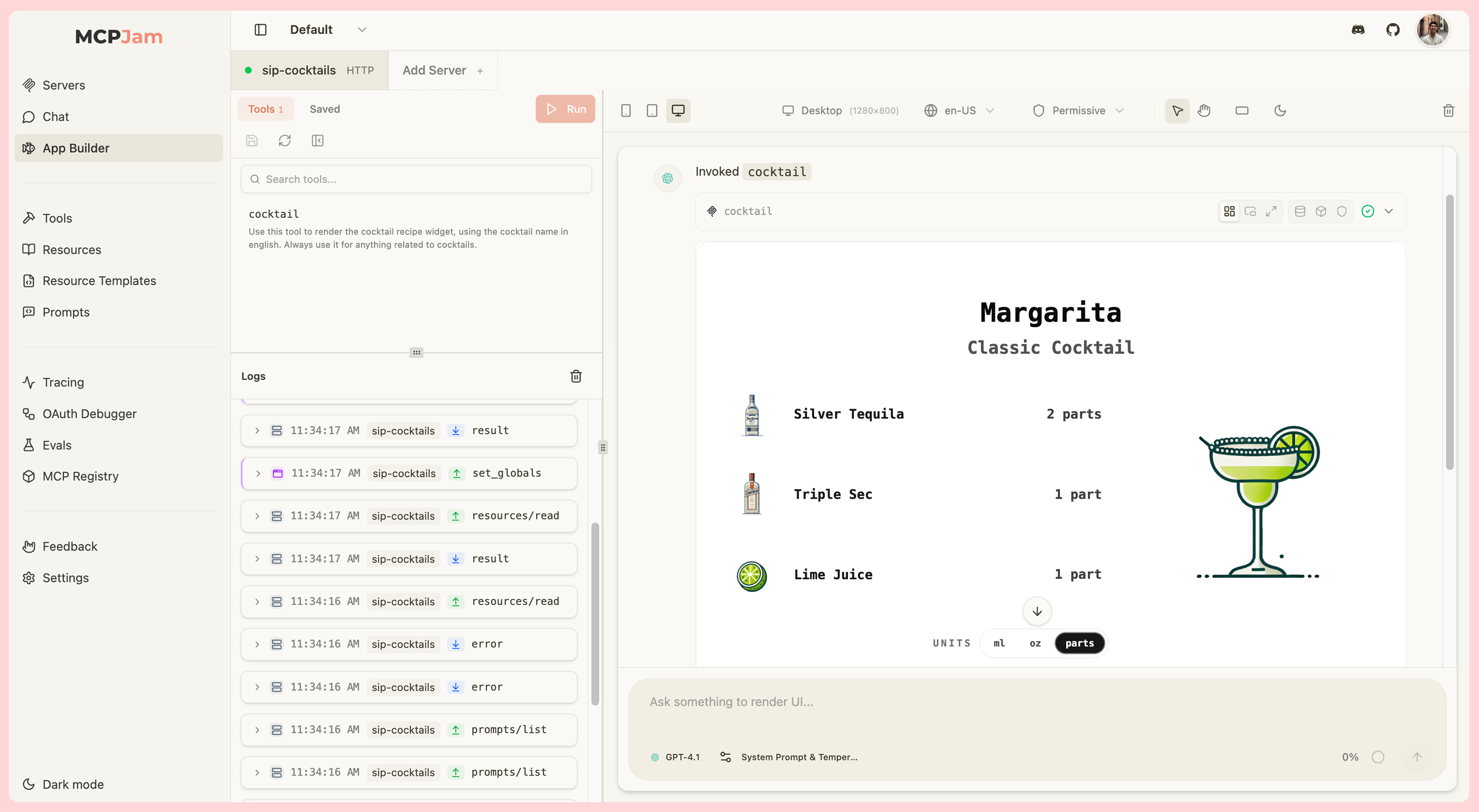
The Playground replaces the standalone Chat and App Builder tabs.
Everything those tabs did is here, plus multi-host compare and a dockable
Sessions rail.
Key Features
- Chat with frontier models — Talk to your server using Claude, GPT, Gemini, DeepSeek, and more at no cost, no API key required. Organizations can configure additional model providers in their organization settings.
- Manual tool invocation — Run any tool from the Tools rail with your own inputs to iterate on a widget or response without prompting a model.
- Widget emulator — Render widgets exposed via
openai/outputTemplate(ChatGPT Apps) orui.resourceUri(MCP Apps) the same way a real host would, with Inline, Picture-in-Picture, and Fullscreen display modes. - Chat / Trace / Raw views — Switch between the conversation, a timestamped timeline of every step (with per-step latency and tokens), and the exact JSON payload sent to the model.
- Multi-model compare — Send a single prompt to up to 3 models at once and watch the responses side by side.
- Multi-host compare — Render the same tool call under multiple host configurations (ChatGPT vs Claude, different device sizes, different capability sets) at the same time. New sessions start with ChatGPT, Claude, and Cursor pre-selected so the comparison is immediate.
- Display context controls — Device viewport, light/dark theme, host style, locale, timezone, CSP mode, device capabilities, and safe area insets — all live in the toolbar.
- Per-widget debugging — Inspect raw tool input/output,
widgetState, model context, and CSP violations from icons above each widget. - JSON-RPC logger — Real-time, filterable feed of every message between the inspector and your servers.
- Sessions rail — Resume, archive, and search past conversations from the left rail.
- Skills and prompts — Type
/to inject skills or MCP prompts directly into the chat. - Edit tool input/output live — Click Edit on any tool-result card to tweak the input or output JSON and watch the widget re-render instantly; Run re-executes the tool with your edited input.
- Voice input — Click the mic button in the chat input to record your voice; the audio is transcribed and the text is inserted into the composer.
Getting Started
- Connect a server — Add and connect an MCP server from the Clients tab (or the + button in the chat input).
- Open the Playground — Switch to the Playground tab.
- Send a message or run a tool — Either chat with your server from the input bar and let the model call tools, or pick a tool from the left rail and execute it with your own input.
Layout
The Playground is a three-column IDE shell. Each side rail is collapsible — drag the divider or click the peek strip to hide or restore it. Left rail — Tools / Sessions- Tools (default) — Every tool exposed by your connected server(s). Pick one to fill in inputs and run it manually. When more than one server is selected, tools are aggregated across all of them and routed automatically on execution.
- Sessions — Browse, resume, rename, archive, and search past chat threads in the current project.
- Chat composer, conversation thread with inline tool calls and widgets, and the host context toolbar.
- Top of the pane has a segmented control to switch between Chat, Trace, and Raw views.
- Logs (always available) — Real-time feed of MCP protocol messages. Search, filter by source server, filter by log level, copy, download, or clear the buffer.
- Shell (shown when the previewed host has a Project Computer and is not a harness client) — A live terminal on the personal computer. Click Open terminal to provision or wake the computer and connect. Switching between Logs and Shell keeps both the terminal WebSocket and the log stream alive so neither is dropped.
Chat, Trace, and Raw Views
Switch between three perspectives on the same conversation from the segmented control at the top of the center pane:- Chat — The normal thread with inline messages, tool calls, and rendered widgets.
- Trace — A timestamped timeline of every step (user turns, agent turns, tool calls) with per-step and total latency and token counts. Expand any step to inspect its raw input and output.
- Raw — The full JSON payload sent to the model (system prompt, tool definitions, conversation history). Available for both live sessions and previously-saved sessions you reopen.
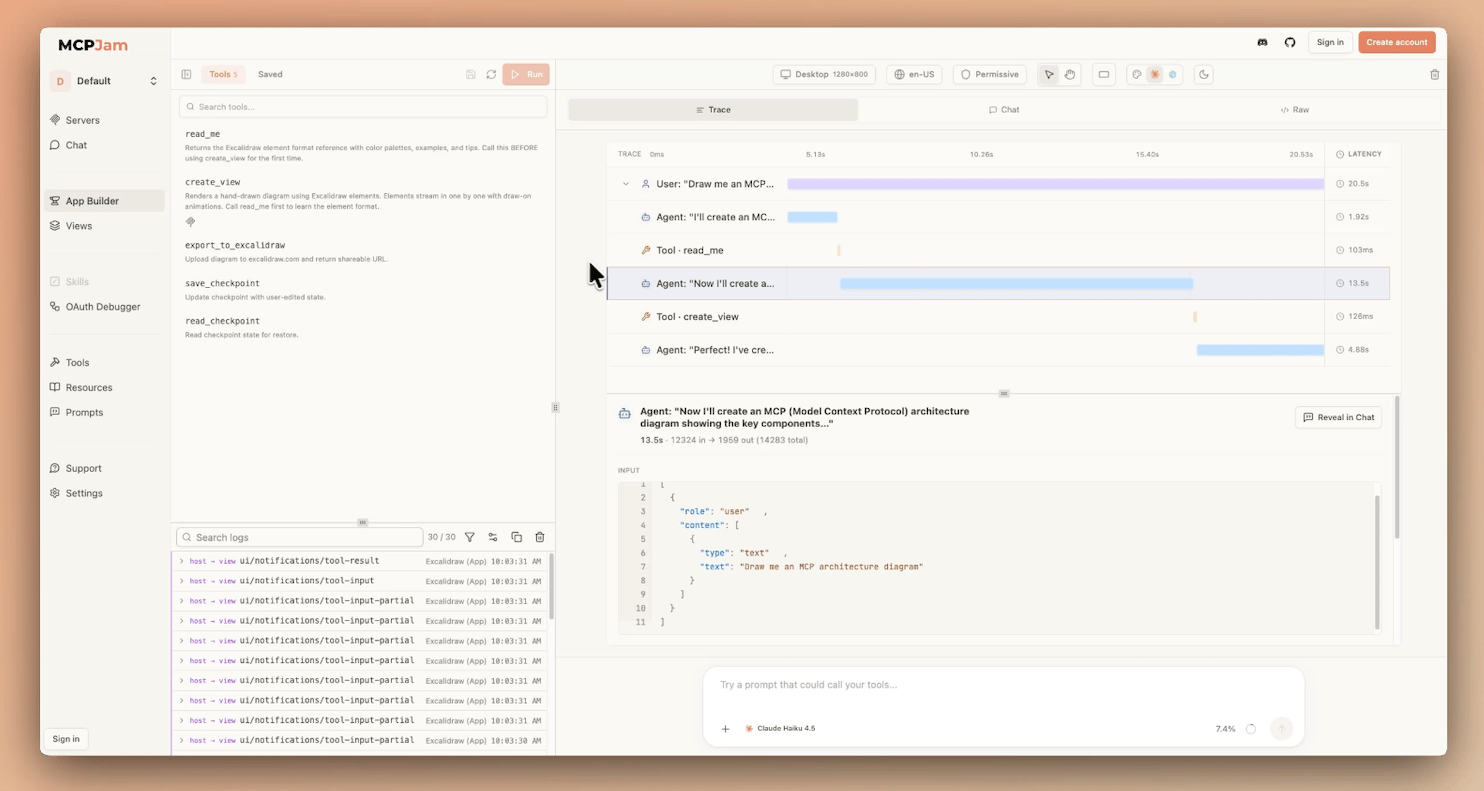
Tools Rail (Manual Invocation)
Open the Tools tab in the left rail to invoke any tool by hand:- Select a tool to load its input form generated from the tool’s JSON Schema.
- Fill in fields, toggle optional fields on or off, and click Run to execute.
- The result appears in the center pane just like a model-issued tool call, with the same row of debugging icons and widget rendering.
- Click Refresh to re-fetch the tool list from the server (useful after a server reload).
- Click Save to persist the current inputs as a saved request you can rerun, rename, duplicate, or delete from the same panel.
Model Picker
The model picker in the chat input lets you choose which LLM to use. Models are organized into two tabs:- Free models — Frontier models (Claude, GPT, Gemini, DeepSeek, and more) available at no cost with no API key required.
- Your providers — Models from providers configured in your organization’s settings on mcpjam.com.
Organization key policy
When your organization requires its own provider keys for AI features, the model picker changes:- The Free models / Your providers split is replaced by a single list of your organization’s models only.
- If no organization model is available yet, the picker shows an empty state:
- Admins see an Add a provider button that opens the organization’s AI providers settings.
- Members see “Ask an organization admin to add one.”
- If your previously saved model is no longer allowed under the policy, a warning icon appears on the picker trigger naming the model. The model is not listed in the menu, and the chat is blocked from sending until you choose an allowed model.
- While the organization’s AI settings are loading, every row is locked and the chat is blocked from sending. This prevents a hosted model from becoming the default before the policy is known.
Out-of-credits state
When your MCPJam credit balance reaches zero, free models are grayed out in the picker with a tooltip explaining the limit. Models from your own providers remain enabled — switching to one is the fastest way to keep working. Paid top-up credits (if you have any) keep free models available even after your daily free allowance is exhausted. The Send button is disabled with an “Out of MCPJam credits · resets in …” tooltip when the selected model is a locked MCPJam model. Switching to a model from your own providers re-enables Send immediately. If the out-of-credits dialog appears, the actions available depend on your plan and role:- Free plan (owner) — The dialog shows Compare plans (opens your organization’s Plans settings) and Learn more about BYOK (opens the BYOK and credits explainer under Usage & billing).
- Free plan (admin or member) — The dialog shows a Request upgrade link to email an organization owner.
- Paid plan (owner or admin) — The dialog shows Buy credits to add shared credits to your organization.
- Paid plan (member) — The dialog shows a Request credits link to email an organization owner.
Frontier models and sign-in
Higher-priced models are greyed out in the picker for guests, with a “Sign in to use this model” tooltip. Signing in removes this restriction — signed-in users on any plan can use these models. If you select a greyed-out model as a guest, a sign-in prompt appears showing the supported providers. You can sign in to get access, or choose Not now to continue with a standard model. This prompt does not affect your credit balance.Multi-Model Compare
Send one prompt to up to 3 models simultaneously. Open the model picker, toggle Multiple models on, and select the models you want to compare. Each model’s response — including tool calls and rendered widgets — appears in its own column. The reasoning effort chip stays visible in compare mode. The chip in the chat input controls the lead card’s effort; each card also has its own chip so you can set a different effort per card. Two cards of the same model at different effort levels are treated as two separate columns — for example, Sonnet at Low and Sonnet at High run side by side as distinct targets.The Multiple models toggle is hidden when the active session is shared
with the project (project-visible). Enabling it on a shared session would
mutate experiment state for every collaborator. Switch the session back to
private to use multi-model compare.
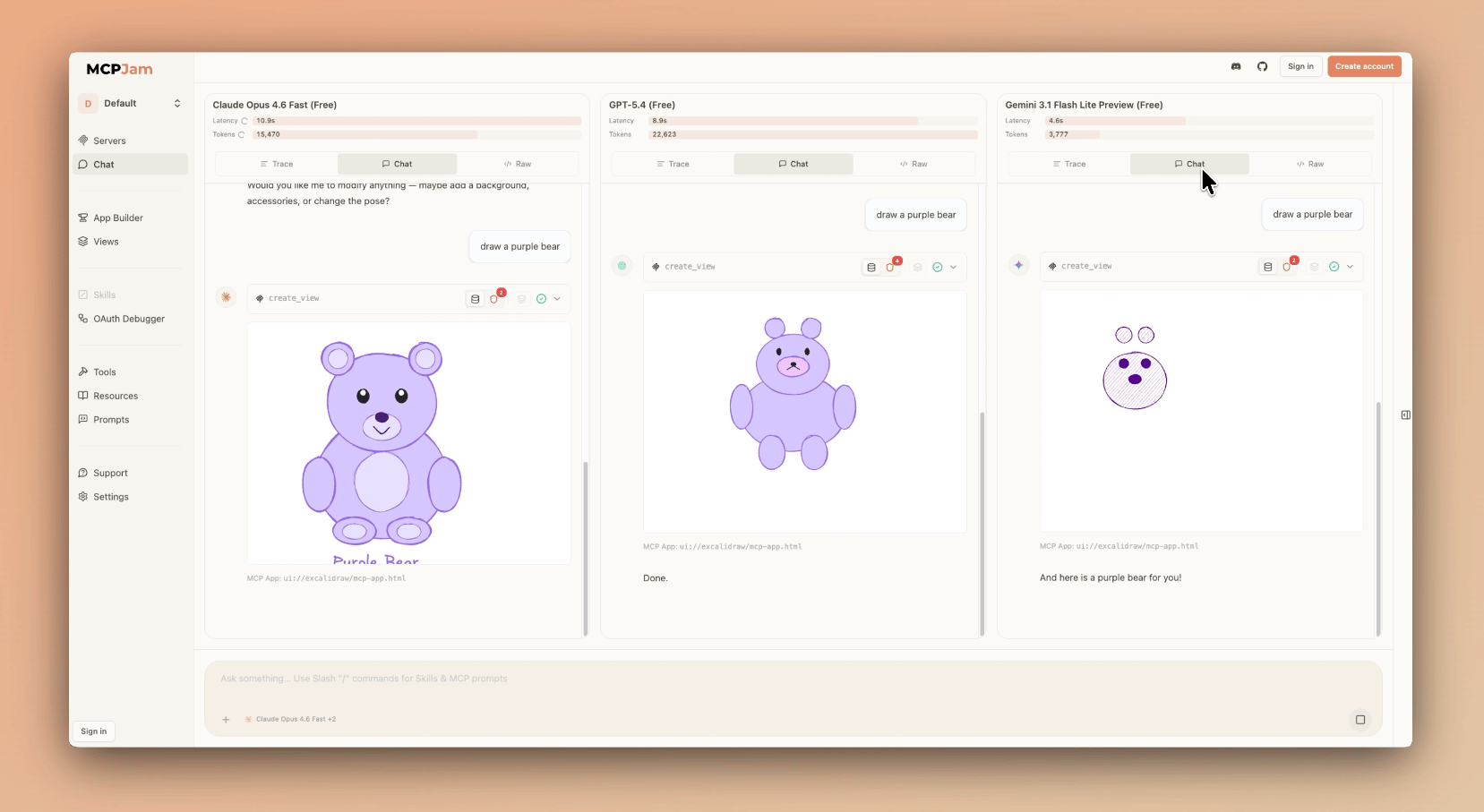
Multi-Host Compare
Open the host picker (top-left of the center header) to render the same tool calls under different host configurations side by side — for example, ChatGPT vs Claude host style, or desktop vs mobile viewports. New sessions start with ChatGPT, Claude, and Cursor pre-selected so you land directly in a 3-way compare. To change the lineup, open the host picker:- Click a row to switch to that client immediately. The picker closes and any comparison lineup collapses to a single column.
- Click the checkbox on a row to add or remove that client from the comparison grid without changing the active client. Ticking a second row immediately opens a side-by-side view; unticking removes that column.
The host picker is hidden when the active session is shared with the project
(project-visible), for the same reason as multi-model compare. Switch the
session back to private to use multi-host compare.
Sessions
The Sessions tab in the left rail lists every saved conversation in the current project, grouped by recency. From here you can:- Open a session to resume it in the center pane.
- Rename, archive, or delete individual sessions.
- Archive all sessions at once.
- Search across session titles.
Host Context Toolbar
The toolbar above the chat thread controls how the active host renders your widgets. Every change applies to the next tool call and to already-rendered widgets where applicable.Device Viewports
- Desktop (1280×800)
- Tablet (820×1180)
- Mobile (430×932)
- Custom — Any width and height from 100 to 2560 pixels
Theme
Toggle light and dark mode to test both appearances.Host Style
Switch between Claude and ChatGPT host styles. For MCP Apps that use the MCP Apps style variables, the ChatGPT toggle translates the widget’s styles to ChatGPT’s design tokens. Each host style ships with a distincthostCapabilities preset. Switching from one preset to another changes the capabilities advertised in the ui/initialize handshake, so widgets that gate on optional fields (such as serverResources or logging) will behave differently under each style.
Copilot follows Microsoft 365 Copilot’s published bridge:
toolInfo is not delivered and pip is not advertised, so a widget that calls app.getHostContext()?.toolInfo on the Copilot preset correctly sees undefined.
ChatGPT (web) advertises inline and fullscreen only — pip is not offered by the ChatGPT web host (probe: 2026-09-29).
Host Capabilities
The Host Capabilities button in the toolbar (next to Host Context) lets you override thehostCapabilities blob advertised to MCP App widgets in the ui/initialize response.
By default, the active host style’s preset is used. Click Host Capabilities to open the editor and customize which capabilities the mock host claims to support. This is useful for testing how your widget behaves when specific capabilities are absent or present — for example, verifying that your widget degrades gracefully when serverResources is not advertised.
- No override — the active host style’s preset is used (shown as the placeholder in the editor)
- Custom override — your JSON object is advertised verbatim; an “Override” badge appears on the button
- Clear override — resets back to the host style preset
Host Capabilities configures what the mock host advertises. Enforcement —
rejecting widget requests for capabilities not in the blob — is a planned
follow-up. Until then, the inspector will still service all widget requests
regardless of what the handshake advertises.
Locale
Pick a BCP 47 locale (e.g.en-US, es-ES, ja-JP, fr-FR) to verify internationalization.
Timezone
Choose from 19 IANA timezones plusUTC to test time-aware widgets.
The timezone control is only available for MCP Apps (SEP-1865).
CSP Mode
- Permissive (default) — Allows all HTTP and HTTPS resources. Recommended for development.
- Strict — Only allows domains declared in your widget’s CSP metadata (
openai/widgetCSPor_meta.ui.cspfor ChatGPT Apps,ui.cspfor MCP Apps).
Device Capabilities
- Hover — Enable or disable hover support to test mouse vs touch-only behavior.
- Touch — Toggle touch input to simulate mobile and tablet devices.
Safe Area Insets
Simulate notches, rounded corners, and gesture areas. Pick a preset (None, iPhone with Notch, iPhone with Dynamic Island, Android gesture navigation) or set custom top/bottom/left/right values.Widget Controls
Download confirmation
When an MCP App widget triggers aui/download-file request, the inspector shows a confirmation dialog before the download runs. The dialog displays the filename, MIME type, and URI so you can make an informed decision. Click Download to allow it or Cancel to deny it — a denial is surfaced to the widget as a { isError: true } result so the widget can handle it gracefully.
Only one confirmation prompt is shown at a time. If a second download request arrives while a prompt is open, it is automatically denied.
Display Modes
All three display modes are supported for both ChatGPT Apps and MCP Apps:- Inline (default) — Widget renders within the chat message flow.
- Picture-in-Picture — Widget floats at the top of the screen, staying visible while scrolling.
- Fullscreen — Widget expands to fill the entire viewport.
Widget rendering
All widgets — whether they declareopenai/outputTemplate (ChatGPT Apps), _meta.ui.resourceUri (MCP Apps), or both — render through a single unified renderer. The window.openai compatibility shim is always injected, so both window.openai.* calls and ui/* JSON-RPC messages work regardless of which metadata the tool declares.
Widget rendering is gated on the active Client’s clientCapabilities. Hosts that advertise the MCP UI extension (Claude, ChatGPT, MCPJam, Copilot, Cursor, Codex) render widgets as normal. Hosts that strip the extension show the plain tool result row instead. Per-server capability overrides are honored.
Per-Widget Debugging
Every tool result in the chat thread has a row of icons in its header. Click an icon to open the matching debug panel below the widget.Sign-in links
When a computer-backed tool (such as Bash) runs a command that triggers a device-flow authentication prompt — for example,gh auth login — any sign-in URLs surfaced by the tool appear as clickable links directly in the chat thread under a Sign-in link heading. This saves you from hunting through scrollback for the URL. Only https: URLs are rendered as links; plain http: and non-web schemes are never shown.
Data
Raw tool input, output, and error details for the call.Widget State (ChatGPT Apps)
The currentwidgetState object and when it was last updated. This is what your widget sets via window.openai.setWidgetState and what gets passed back to the model on the next turn.
Model Context (MCP Apps)
The context your widget has sent back to the model viaui/update-model-context. Only appears when the widget has set model context.
CSP
In Strict mode, a badge shows the number of blocked requests. The panel includes:- Suggested fix — Copyable JSON snippet to add to your
openai/widgetCSPorui.cspfield. - Blocked requests — Each violation with the directive and source that was blocked.
- Declared domains — The connect, resource, frame, and base URI domains your widget currently declares.
Mounts
The debug panel includes a Mounts section that appears only when a widget iframe has been torn down and rebuilt more than once during a session. Each entry shows the mount index, the reason it fired, and a timestamp. A healthy widget has exactly one mount; multiple entries indicate an unexpected re-mount that may have wiped widget state.Edit input & output
Click Edit on a tool-result card to make the Input and Result JSON editable in place. Edits re-render the widget live with no reload; Run re-executes the tool with the edited input, and Revert restores the original. Edits are local to the session — nothing is persisted.Right Rail
The right rail has two tabs. The Logs tab is always present; the Shell tab appears when the previewed host has a Project Computer attached and is not a harness client (Claude Code, Codex, or Cursor). Harness clients run on disposable per-conversation boxes, not a personal computer, so the Shell tab is not shown for them.Logs tab
Streams every message between the inspector and your connected server(s) in real time. Each entry shows the direction (client→server or server→client), the method name, and a timestamp. Click an entry to expand its full JSON payload. Logged messages include:- Tool invocation requests and responses
window.openaiAPI calls from your widget- Widget state updates
- MCP App JSON-RPC messages (
tools/call,ui/initialize,ui/message, etc.)
- Search the buffer
- Filter by source server
- Log level filter
- Copy the visible entries to your clipboard
- Download the buffer as a file
- Clear the buffer
- Collapse the rail
Shell tab
When the previewed host has a Project Computer and is not a harness client (Claude Code, Codex, or Cursor), a Shell tab appears next to Logs. Click Open terminal to provision or wake the computer and open a live terminal session. The computer status chip in the Shell header shows the current state (starting, ready, error, etc.). Both tabs stay mounted while you switch between them, so the terminal WebSocket and the log stream are never dropped.Input Bar
Click the + button on the left of the chat input to manage servers, attach files, and tune model behavior. Servers A list of every server in your project, sorted by status. Each row shows the server name and transport type (HTTP or stdio, npx/desktop only). Connect, disconnect, or toggle a server on or off for the current conversation. + Add server opens the add-server modal without leaving the Playground.
Attach files
Add files to the conversation in any of these ways:
- File picker — Click the + button and choose Attach files to browse and select files.
- Paste — Copy an image to your clipboard and paste it directly into the chat input (
Ctrl+V/Cmd+V). Pasted images without a filename are saved automatically aspasted-image-1.png,pasted-image-2.png, and so on. - Drag and drop — Drag one or more files from your desktop and drop them onto the chat input. A “Drop image or file to attach” overlay appears while you’re dragging to confirm the drop target.
- local shell commands (
bash); - destructive UI actions;
- workspace tools that change something in your project.
browser_*) and WebMCP page tools follow the chat’s Tool Approval setting. With it off, calls run without per-call approval. Browser device permission remains a separate prerequisite.
Others never pause even when it is on: read-only lookups of your own project, the progressive-discovery meta-tools, read-only UI actions, and tools an MCP App provided. Everything in between follows the switch, including web search — its query is your text leaving for a third party, and the call spends credits.
Two things sit just outside those lists. An unattended run (an eval, a swarm) has nobody to ask, so its browser tools follow the toolPolicy it declared up front instead of pausing. And loading a skill that an MCP server provided is always tagged as third-party content and always bound to the manifest digest you were shown — but whether it pauses follows the switch.
When a local harness (Claude Code or Codex) is active, turning Tool Approval off requires a separate Run without asking? confirmation before the first send. The dialog names the harness and explains that it will run commands and change files on your computer without asking first. Consent is scoped to your signed-in account, this machine, the current project, and the harness — it is not shared across projects or machines.
- Cancel restores Tool Approval to On and keeps your draft intact.
- Once confirmed, MCPJam answers native approval requests on your behalf. The runtime stays in ask mode — toggling the switch does not decide any approval that was already waiting; your explicit answer still controls it.
- Host-executed tools marked as always requiring approval continue to pause regardless of the toggle.
- Forgetting the local authorization clears the Off consent; the confirmation dialog reappears the next time you turn it off.
Shift, Alt, Ctrl, Cmd) are never intercepted — Shift+Up still selects text.
Voice input
Click the mic button (right side of the input) to record your voice. The audio is transcribed using Whisper and the resulting text is appended to whatever you’ve already typed in the composer. Recording stops automatically after 3 minutes. The mic is disabled when your daily voice budget is exhausted; a warning appears in the composer when the remaining budget is low. While a recording is in progress, pressing Enter does not submit the draft — use the stop button (arrow-up) to finish recording first, or the ✕ button to cancel without transcribing.
Context meter (right side of the input)
Open it to inspect the token breakdown for the current conversation — input, output, system prompt, and MCP tools usage. Before you send the first message, the popover shows an MCP Tools (estimated) row with a pre-request estimate of how many tokens your connected servers’ tool descriptions will consume. This estimate is UI-only and is not used in billing or actual session usage math. Once the model responds and the provider reports real input/output token counts, the estimate is replaced by the actual usage. If token counting is not supported for a particular server or model, the popover shows a Token count unavailable notice for that server instead.
Skills
The Playground respects every skill you’ve configured in the Skills tab. A skill ends up in a conversation in one of two ways:- Inferred — The model picks a skill based on your prompt, loads its instructions, and runs it against your MCP tools. Useful for observing skill behavior end-to-end.
- Explicit — Type
/in the input and pick a skill from the SKILLS section of the picker. The skill content is front-loaded before your message.
Prompts
Prompts are MCP prompt templates exposed by your servers viaprompts/list. Type / in the input and pick one from the PROMPTS section. Selected prompts appear as expandable cards above the input — source server ID, description, arguments (required ones marked with *), and a preview of the first message — so you can review or remove them before sending.
Workspace tools
When you are signed in as a project member, the Playground gives the model a set of built-in tools for interacting with the MCP servers saved in your project. These tools are not available to guests or in shared scenario sessions.
Servers are identified by name or ID as saved in the project. Stdio servers are not supported for live operations — the model will receive a clear error rather than a connection failure.
Workspace tools that change something —
call_server_tool, start_claude_readiness_run, start_openai_readiness_run, start_muse_readiness_run, cancel_readiness_run, and every tool that creates, updates, deletes, starts, cancels or dismisses — always pause so you can approve or deny each call, whatever the Tool Approval toggle says. The reads that open a connection to one of your servers (diagnose_server, list_server_tools, read_server_resource, and the other prompt, resource and skill reads) follow the Require tool approval setting saved on the client or project — on when nothing is saved. The composer toggle can add these pauses for a conversation but cannot remove them. Read-only listing and polling tools never require approval, on any model.
These tools are only available when you are signed in as a project member.
They are not shown to guests or in scenario sessions.
Elicitation
When an MCP server needs additional input from you mid-tool-call, it can pause execution and ask a question. The Playground renders these requests as modal dialogs and resumes the tool call once you respond. This applies to both model-initiated tool calls and tool calls triggered by an MCP App widget. When an App widget’s tool call returnsinput_required, the same elicitation dialog appears overlaid above the widget — the App keeps rendering underneath — and only the final result is returned to the widget once all rounds are complete.
Form elicitation
The server presents a form with fields defined by its schema. Fill in the fields and click Accept to submit your answer, or Decline to refuse. The tool call continues (or fails gracefully) based on your response.URL elicitation
The server asks you to visit a URL to complete an out-of-band step — for example, an OAuth authorization or a payment flow. The dialog shows:- The full destination URL as plain text (never as a clickable link, so you must read it before opening it).
- The host emphasized so subdomain spoofing is visible at a glance.
- Warnings for unsafe conditions: unencrypted
http://links, punycode hostnames that can mimic well-known domains, embedded credentials in the URL, and bare IP addresses.
http(s) schemes (such as javascript: or data:) are blocked outright and cannot be opened.
Click Open in new tab to open the URL. If your browser blocks the pop-up, a notice appears with a Copy link button so you can open it manually. The dialog only records your consent once the tab actually opens — a blocked pop-up does not count as acceptance.
Click Decline to refuse, or close the dialog to cancel without an explicit choice.
URL-required notices
If a tool call fails because the server requires you to complete an out-of-band interaction first (MCP error-32042), the Playground shows a URL-required notice. This is advisory — the tool call has already failed — so there is nothing to decline. Open the required URL(s), then retry the tool call or ask the model to try again.
When a server requires multiple interactions before a tool can run, the notice walks you through them one at a time and only dismisses once you have handled all of them.
Browser
When you open Playground on a local installation where the browser is available but not yet set up, a dialog appears asking “Let agents use your browser?” — even over a restored conversation and without requiring a saved client or connected MCP server.- Allow browser access — grants device permission and enables browser tools for eligible clients. The dialog stays open until setup finishes; closing or pressing Escape while setup is in progress is blocked.
- Not now / Close / Escape — dismisses the dialog and remembers that choice across tabs and remounts. The dialog does not reappear for that installation.
Related Features
- Clients — Manage MCP server connections, transports, and OAuth.
- Skills — Configure skills that the Playground can use.
- Projects — Organize servers, sessions, and views into shared workspaces.