
This guide walks you through installing the SDK, connecting to an MCP server, and running your first evaluation.
Prerequisites
- Node.js 18+
- An LLM API key (Anthropic, OpenAI, etc.)
Installation
Step 1: Connect to an MCP Server
import { MCPClientManager } from "@mcpjam/sdk";
const manager = new MCPClientManager({
everything: {
command: "npx",
args: ["-y", "@modelcontextprotocol/server-everything"],
},
});
await manager.connectToServer("everything");
// List available tools
const tools = await manager.listTools("everything");
console.log("Tools:", tools.tools.map((t) => t.name));
@modelcontextprotocol/server-everything is a reference MCP server with sample tools like add, echo, and longRunningOperation.
If you’re connecting to an OAuth-protected HTTP server and already have a refresh token, pass refreshToken and clientId instead of a static access token:
const manager = new MCPClientManager({
remoteServer: {
url: "https://mcp.example.com/mcp",
refreshToken: process.env.MCP_REFRESH_TOKEN!,
clientId: process.env.MCP_CLIENT_ID!,
clientSecret: process.env.MCP_CLIENT_SECRET,
},
});
await manager.connectToServer("remoteServer");
The SDK will exchange the refresh token for an access token and automatically refresh it when needed.
Call tools without an LLM—useful for unit tests:
const result = await manager.executeTool("everything", "add", {
a: 5,
b: 3,
});
console.log("5 + 3 =", result); // 8
Step 3: Create a TestAgent
Connect an LLM to your MCP tools:
import { MCPClientManager, TestAgent } from "@mcpjam/sdk";
const agent = new TestAgent({
tools: await manager.getTools(),
model: "anthropic/claude-sonnet-4-20250514",
apiKey: process.env.ANTHROPIC_API_KEY,
});
Step 4: Run Prompts
const result = await agent.prompt("What is 15 plus 27?");
console.log("Response:", result.getText());
console.log("Tools called:", result.toolsCalled());
console.log("Arguments:", result.getToolArguments("add"));
console.log("Latency:", result.e2eLatencyMs(), "ms");
Step 5: Write a Test
import { matchToolCalls } from "@mcpjam/sdk";
import { describe, it, expect } from "vitest";
describe("Math MCP Server", () => {
it("should call add for addition", async () => {
const result = await agent.prompt("Add 10 and 5");
expect(matchToolCalls(["add"], result.toolsCalled())).toBe(true);
});
});
Step 6: Run Statistical Evaluations
import { EvalTest } from "@mcpjam/sdk";
const test = new EvalTest({
name: "addition-accuracy",
test: async (agent) => {
const result = await agent.prompt("Add 2 and 3");
return result.hasToolCall("add");
},
});
await test.run(agent, { iterations: 30 });
console.log(`Accuracy: ${(test.accuracy() * 100).toFixed(1)}%`);
Complete Example
import { MCPClientManager, TestAgent, EvalSuite, EvalTest } from "@mcpjam/sdk";
async function main() {
// Setup
const manager = new MCPClientManager({
everything: {
command: "npx",
args: ["-y", "@modelcontextprotocol/server-everything"],
},
});
await manager.connectToServer("everything");
const agent = new TestAgent({
tools: await manager.getTools(),
model: "anthropic/claude-sonnet-4-20250514",
apiKey: process.env.ANTHROPIC_API_KEY,
});
// Quick test
const result = await agent.prompt("Echo 'Hello!'");
console.log("Response:", result.getText());
console.log("Tools:", result.toolsCalled());
// Run eval suite
const suite = new EvalSuite({ name: "Basic Operations" });
suite.add(new EvalTest({
name: "echo",
test: async (a) => (await a.prompt("Echo 'test'")).hasToolCall("echo"),
}));
suite.add(new EvalTest({
name: "add",
test: async (a) => (await a.prompt("Add 1 and 2")).hasToolCall("add"),
}));
await suite.run(agent, { iterations: 10 });
console.log(`\nSuite accuracy: ${(suite.accuracy() * 100).toFixed(1)}%`);
// Cleanup
await manager.disconnectServer("everything");
}
main();
Generate evals from the Inspector
You can also generate eval code directly from the MCPJam Inspector:
- Connect your MCP server in the Inspector
- Click the ⋮ menu on the server card
- Select Copy markdown for server evals
- Paste the copied markdown into an LLM (Claude, ChatGPT, etc.)
- The LLM will generate eval test code using
@mcpjam/sdk
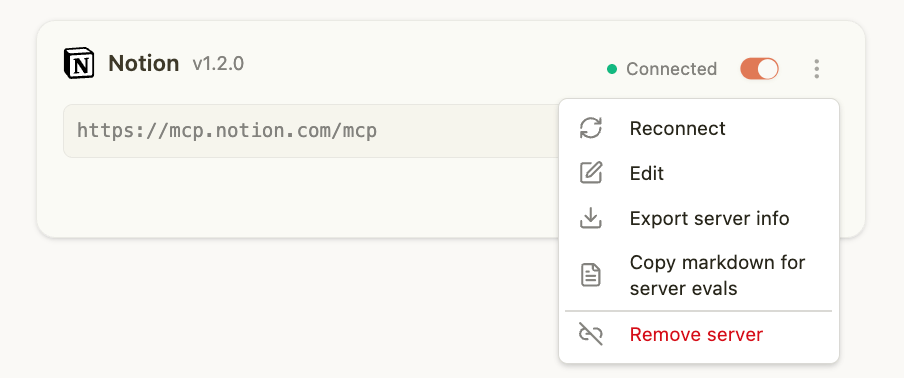
The copied markdown is a ready-to-use prompt that includes your server’s capabilities and the full @mcpjam/sdk API reference, so the LLM has everything it needs to write your eval tests.
If you have a MCPJAM_API_KEY set up, the generated eval code will automatically save results to MCPJam — you can view them in the Evals tab of the Inspector. Go to Settings > Workspace API Key in the Inspector to get your key.
Next Steps