

Key Features
Views provide a complete workflow for capturing, testing, and sharing tool outputs:- Snapshot Capture - Save a tool execution with one click from the chat thread
- Offline Rendering - Preview widgets using cached HTML without a running server
- Live Editing - Modify inputs, outputs, and other metadata in a JSON editor and see the widget update instantly
- Display Context Controls - Switch device type, locale, timezone, CSP mode, capabilities, and safe area insets to test different environments
- Re-run from Views - Execute the tool again with modified input when the server is connected
- Team Collaboration - Views are workspace-scoped, so teammates in the same workspace see all views automatically
Getting Started
To save your first view:- Connect your MCP server - Use the Servers tab to connect a server that returns widget-enabled tools
- Run a tool - Invoke a tool from the Chat tab or the App Builder to produce a widget result
- Save as View - Click the Save as View icon in the tool call header. The view is saved instantly with an auto-generated name based on the server and tool name.
- Browse your views - Switch to the Views tab and select your server from the tabs at the top. Your saved views appear in the left sidebar.
You must be signed in to save views. To share views with teammates, use a
shared workspace.
Browsing and Previewing
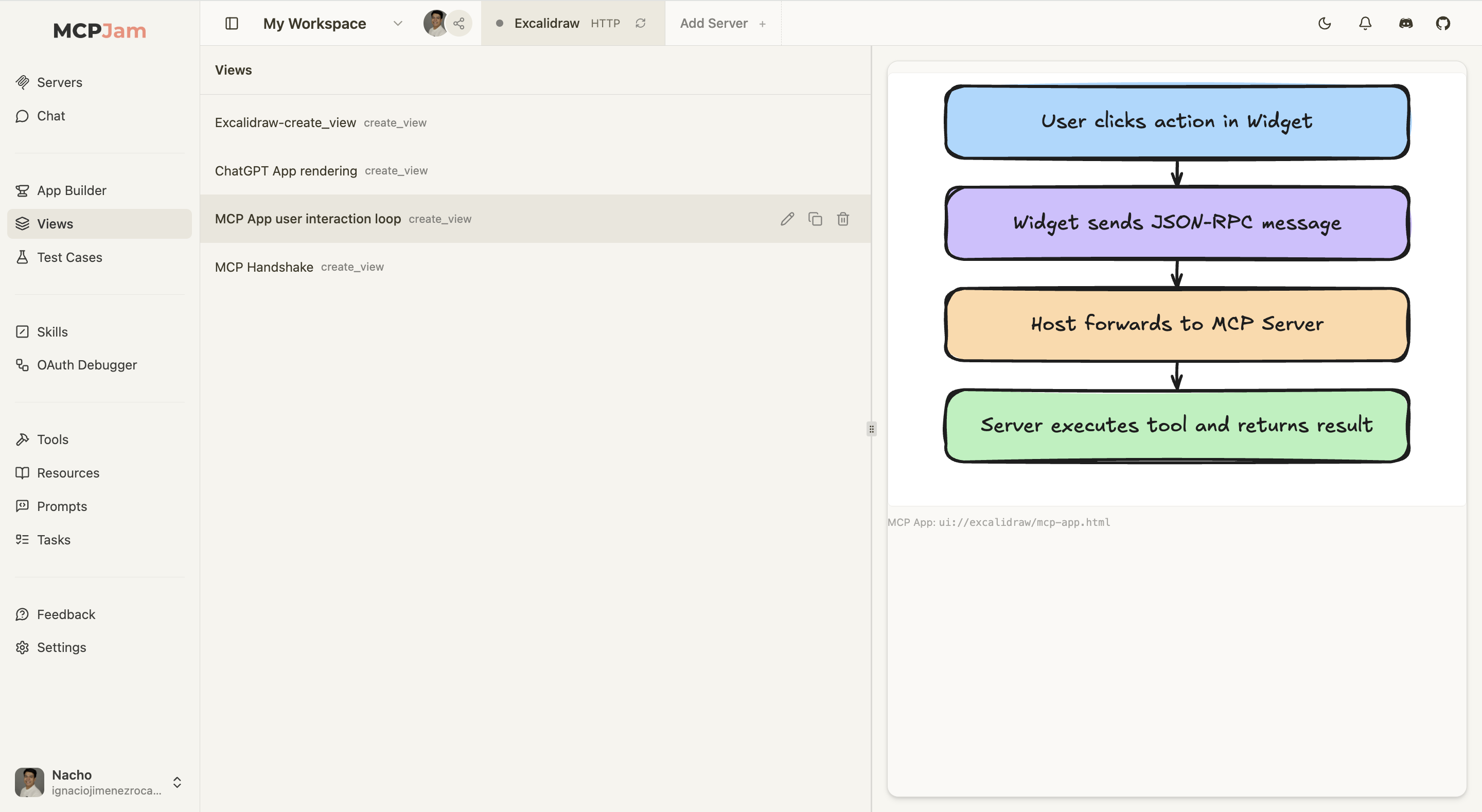
The Views tab uses a split-panel layout. The left sidebar shows a scrollable list of views sorted by most recently updated. Each entry displays the view name and tool name. Click a view to see it rendered in the right panel inside a device frame. The frame dimensions and settings match the display context that was active when the view was saved.Editing Views
Click the pencil icon on any view in the sidebar to enter edit mode. The left panel becomes a JSON editor and the right panel shows a live preview that updates as you type.JSON Editor
The editor shows a JSON object with the view’s input, output, and other metadata. Edit any field and the widget preview updates in real time. Click the view name at the top of the editor to rename it inline.Running with Modified Input
When the server is connected, a Run button appears in the editor toolbar. Modify the tool input and click Run to see what the tool output and widget look like with the new input.The Run button only appears when the server is connected. Editing and
previewing work without a connection.
Saving Changes
Click Save to persist your edits. The Save button is enabled whenever there are unsaved changes to input, output, and other metadata. Saving also captures the current widget HTML for offline rendering.Display Context Controls
In edit mode, a toolbar appears above the preview panel with controls for testing different environments:- Device - Switch between Phone (430x932), Tablet (820x1180), Desktop (1280x800), or set custom dimensions
- Locale - Choose a locale (e.g.,
en-US,es-ES,ja-JP) to test different languages and regions - Timezone - Select a timezone (e.g.,
America/New_York,Asia/Tokyo) to test time-aware widgets (MCP Apps only) - CSP - Toggle between Permissive (allows all HTTPS) and Strict (only widget-declared domains)
- Capabilities - Toggle hover and touch support to simulate different input methods
- Safe Area - Configure insets for device notches and gesture areas (e.g., iPhone with Dynamic Island, Android gesture navigation)
Managing Views
Use the action icons on each view in the sidebar:- Rename - Click the view name in the editor to edit it inline. Press Enter to confirm or Escape to cancel.
- Duplicate - Click the copy icon to create a full copy of the view including tool output and widget HTML.
- Delete - Click the trash icon to permanently remove the view.
Sharing and Collaboration
Views are scoped to the workspace. Every member of a shared workspace can see, edit, and manage all views in that workspace. Views are organized by server — select a server tab at the top of the Views page to filter. Changes sync automatically in real time for all workspace members.Best Practices
- Save early, save often - Save a view after any successful tool execution you might want to revisit
- Explore with the editor - Edit input and output data to see how your widget renders with different values, helping you understand what data shapes produce the best result
- Use views for regression testing - After changing your server code, open saved views and click Run to verify the widget still renders correctly with the same inputs
- Save before switching servers - Unsaved changes are lost without warning when you switch server tabs in the Views sidebar
- Leverage offline rendering - Saved views render even when your server is offline, making them ideal for demos and reviews